Say you run a physiotherapy clinic. Your new site has a page for sports injuries and another for post-surgery rehab. Both pages are live, but the main menu only links to a general Services page, and that page never links to either one. A patient who lands on your homepage has no obvious way to find the treatment they need. Google has one fewer way to discover those pages, too.
That’s where search friendly website design starts. Before rewriting the copy or changing the layout, open the site on your phone and try to find a specific service. The path you take can tell you a lot about what needs fixing.
What search friendly website design actually means
It means building a site so search engines can find, crawl and index its pages, and so someone arriving from a search result can find the information they need. The work includes deciding which services get their own pages, how those pages link together and what each page shows on a phone.
Start with your most important service page. Can you reach it from the homepage? Does its URL describe the service? Would the page title make sense to someone seeing it for the first time in Google? Can that person find out what to do next once they land on the page?
Those questions cover much of the ground in Google’s SEO Starter Guide.
Why search and usability are the same project
A patient could land directly on your sports injury page without ever seeing your homepage. They still need to know what you treat, where the clinic is and how to book. If you answer those questions early, the page works as an entry point to the site. A descriptive title, a clear heading and links from related pages also help Google understand where the page fits.
Decisions like these are easier to make while you’re planning the sitemap. Once the design is approved, adding a service can mean reworking the navigation, changing URLs and revisiting page layouts. If you’re still deciding what pages you need, start with our guide to web design for small business.
Start with a crawlable link structure
Open your homepage and try to reach each main service page using the links on the site. If you have to use the search box or paste in a URL you already know, add a link where a first-time visitor would look for it.
For the clinic, that could mean listing “Sports injury physiotherapy” and “Post-surgery rehab” on the Services page and linking each label to its own page. The words tell visitors where they’ll end up, and the links give crawlers a path to follow.
If you’re reviewing the build with a developer, ask them to check that important links use standard HTML links with an href. This is especially worth checking when a menu or card relies on JavaScript to open a page.
Keep important pages close to the home page
Aim to make your main services easy to reach in one or two clicks. A clinic with four core services could link to them in the main menu. A practice with a longer list might use a single Services link in the menu and organize individual services on that page.
Give a service its own page when patients have distinct questions about it and you have enough information to answer them. A post-surgery rehab page, for example, could explain when patients typically get in touch, what to bring and what happens at the first appointment.
Write URLs that describe the page
A URL like /services/sports-injury-physiotherapy/ tells you what to expect before the page opens. Use short, lowercase paths with hyphens between words. Keep dates and internal IDs out of service URLs when they add nothing for the reader.
Pick one canonical URL for each page and use it consistently in your internal links. If you’re redesigning an existing site, list the URLs that will change and map each old address to its most relevant new page before launch. Test the redirects once the site is live. Someone clicking an old link to post-surgery rehab should still land on the rehab page.
Give every page its own title and description
A title tag helps identify the page in search results. A meta description gives you a place to summarize what someone will find there. Read both on their own, away from the rest of the page. It should be clear which service you offer and where, if location matters to the person searching.
For example, a family law practice could use “Family Lawyer in Surrey | Firm Name” as the title. The description could mention the types of cases the firm handles and how to book a consultation, using details the firm can stand behind.
If you use WordPress, a plugin like Yoast SEO lets you edit these fields page by page. Check your main service pages for leftover template titles or descriptions before publishing.
Design a content layout people can scan
Open a service page on your phone and read just the headings. Can you tell who the service is for, what the first appointment involves and how to book? If the answers are buried in long paragraphs, move them into sections of their own.
For a sports injury page, a brief opening can name the injuries the clinic treats and let patients know how to schedule an assessment. Farther down, headings like “What to expect at your first appointment” give people a reason to keep reading and a way to find the details they came for.
Keep heading levels in order
Use a clear H1 for the page topic, H2s for the main sections and H3s for subsections. On the clinic page, “Sports Injury Physiotherapy” might be the H1, “Your First Appointment” an H2 and “What to Bring” an H3 within that section.
Use your theme styles to change the size or appearance of a heading. That way, the page can look the way you want while keeping its outline intact.
Handle images with care
Give images descriptive file names before uploading them. You’ll have a much easier time finding clinic-reception.jpg again than IMG_4821.jpg.
Write alt text based on what the photo contributes to the page. If the image shows what treatment looks like, “Physiotherapist guiding a patient through a knee strengthening exercise” describes the scene. A decorative shape can use empty alt text so a screen reader skips it.
Check the file size, too. A photo displayed in a narrow column usually doesn’t need the full-resolution file from the photographer. Resize and compress it before uploading. If the site still feels slow on your phone, our guide to site speed and mobile SEO covers what to check next.
Add structured data that matches the page
Structured data, sometimes called schema markup, gives search engines a consistent way to read details about a business or page. For a clinic, that could include its name, address and opening hours. On a blog post, it might describe the article and identify its author.
Start by checking what your site already outputs. A WordPress SEO plugin may already add Organization, LocalBusiness or Article markup. From there, consider Service markup for individual services or FAQ markup for a set of questions and answers readers can see on the page. Check that the details in the markup agree with the copy, especially after changes to hours or contact information.
Build for mobile and accessibility from day one
Try booking an appointment on your phone. Open the menu, find the right service, tap the booking button and go through the form. Pay attention to where you have to zoom, where buttons sit too close together or where a phone number takes several taps to find. Check that the mobile layout includes the important content and links you see on desktop.
Then do a pass using only your keyboard. Press Tab from the top of the homepage. Can you see which link or button is selected? Can you open the menu, reach a service page and get to the booking form? If you lose track of where you are, check the focus styles and keyboard navigation. While you’re there, review the color contrast on links, buttons and form labels.
Make pages easy for AI search tools to read
If patients regularly ask whether they can book without a referral, put the answer on the service page in plain HTML text. Use the same approach for other details people rely on, such as who the service is for and what to expect at the first appointment. Readers should be able to find that information without opening a PDF, watching a video or reading text embedded in a banner.
An accurate answer under a descriptive heading gives both readers and search tools a clear passage to work with. If you’re looking at how these tools surface web content, see our guide to SEO vs AEO vs GEO.
A search friendly website design checklist
Run through this checklist on the homepage, contact page and your main service pages before launch. If the site is already live, start with the pages customers are most likely to land on directly.
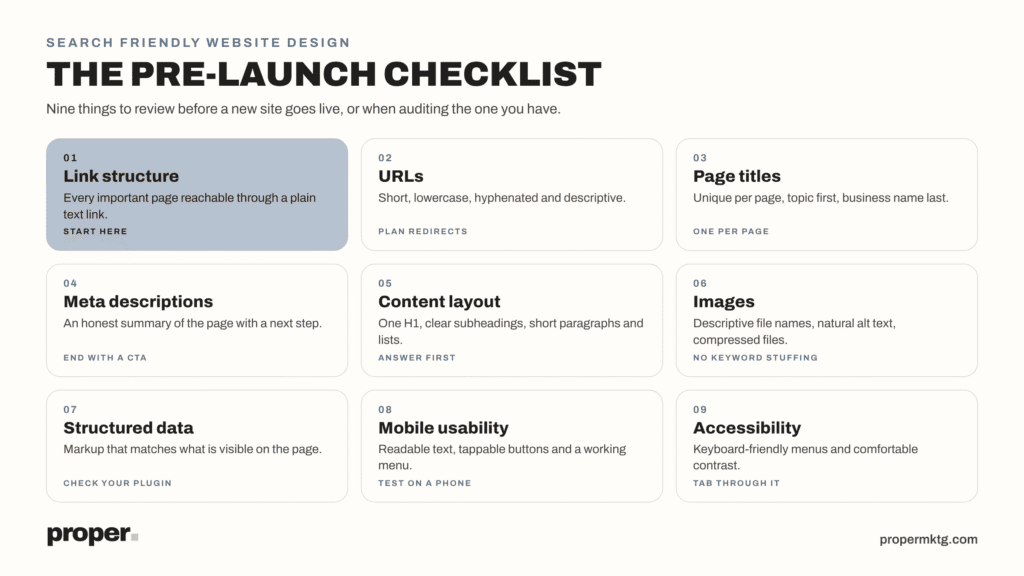
- Link structure: Each important page is reachable through a standard link.
- URLs: Paths are short, descriptive and consistent.
- Page titles: Each page has its own title that names the service or topic.
- Meta descriptions: Each description summarizes the page and gives the reader a reason to click.
- Content layout: The main heading names the topic, with details grouped under descriptive subheadings.
- Images: Files are compressed and informative images have descriptive alt text.
- Structured data: The markup matches the details visitors see.
- Mobile usability: Text is readable, buttons are easy to tap and the menu works.
- Accessibility: You can move through the page by keyboard, see where focus lands and read text comfortably against its background.
Common search friendly design mistakes to avoid
Some problems are easier to catch by testing a real task than by reviewing a design mockup. Try finding a service, opening a link from the old site and completing a booking before you sign off on the build.
- The menu buries important services. If a visitor has to guess what sits under “More,” give those services a place in the navigation or on a clearly linked Services page.
- One page covers every service. Look for services with enough demand and distinct details to support a page of their own. Start with the ones customers call about most.
- Template copy carries over at launch. Look for repeated titles and descriptions, particularly on pages built from the same template.
- A graphic holds essential information. Put opening hours, service details and booking instructions in the page text so people can read and use them on any device.
- Old URLs lead to error pages. Test redirects from the previous site, including pages that people reach through bookmarks or links from other sites.
- Staging settings carry over to the live site. On WordPress, check whether “Discourage search engines from indexing this site” is still enabled after launch.
How to tell if search engines are finding your pages
Open the Pages report in Google Search Console for a broad view of what Google has indexed. If you’re worried about a particular service page, check that URL with the URL Inspection tool.
Use the result to decide where to look. A page excluded by a noindex directive needs a different fix from a page Google sees as a duplicate. If the page is hard to reach from the rest of the site, check its internal links as well. After you fix the issue, you can request indexing through URL Inspection and check back over the following weeks.
How Proper approaches search friendly website design
At Proper, search friendly website design starts with the sitemap. We look at what your clients search for and decide which services need a page of their own, what those pages should cover and how someone should get from the homepage to an inquiry. We settle the URL patterns and page structure before design sign-off so the layout supports those decisions.
We work with clinics, professional services firms and wellness businesses. You work directly with our founder, so you can ask why we’re suggesting a new page, keeping an old URL or changing how a service appears in the menu. Explore our web design and SEO services, or see how we approached structure and content in our medical courier SEO case study.
If you’re trying to figure out where to start with your own site, take our free SEO audit quiz or book a call and we’ll walk through it together.
Frequently asked questions
Is search friendly design different from user-friendly design?
They overlap on things like navigation, headings and mobile layouts. Each also has its own checks. You might test whether a patient can book using only a keyboard and separately check whether Google can index the service page they booked from.
When should search come into a website project?
Bring it in when you’re deciding what pages to build. Ask to see the sitemap and the proposed URLs before approving the design. For a redesign, that’s also the time to identify which existing pages need to keep their URLs or get redirects.
Do small business websites need structured data?
Start with the information people rely on, such as the business name, address and hours, then check whether your platform already adds markup for it. If it does, keeping those details accurate is a practical first step.
Can I make my current site search friendly without a full redesign?
Often, yes. Pick a priority service page and check its title, headings, internal links and mobile layout. Those are changes you can usually make in the current build. A redesign is worth considering if the site makes it difficult to give individual services their own pages or organize them in the menu.
How long does it take to see results from search friendly changes?
It depends on what you changed and how often Google revisits the site. For an indexing fix, check the specific page in URL Inspection. For visibility changes, watch impressions and clicks for the affected pages in Search Console over several months.
Does a website builder like Wix or Squarespace limit SEO?
For a typical small business site, look at whether you can edit page titles, descriptions, headings, URLs and alt text, and whether you can set up redirects. Wix, Squarespace and WordPress offer those basics. If you’re moving an existing site, check how you’ll handle its current URLs before you choose a platform.